Site Content
Company Information
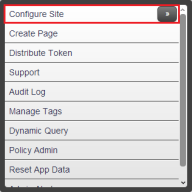
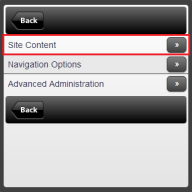
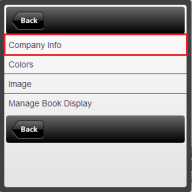
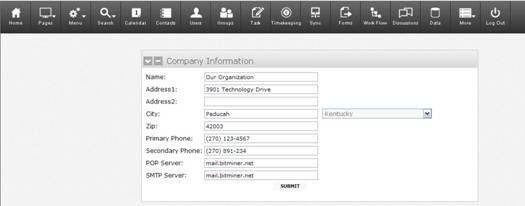
Changing corporate information such as the company name and address is accomplished by clicking the arrows beside Configure Site and Site Content, then selecting Company Info from within the Configure Site utility.
Click the Submit button after any changes have been made.
|
POP Server: |
Default site FROM which email is received. This must be set to allow users to use the WebMail feature of CSI Secure Connect. |
|
SMTP Server: |
Default site TO which email is sent. SMTP must be set for user notifications (i.e., Technical Contact emails, Add/Change/Delete User alerts, and meeting notifications) to take place. |
Colors
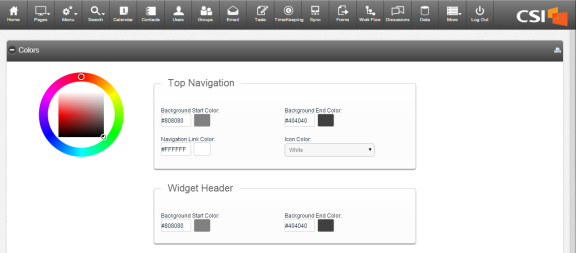
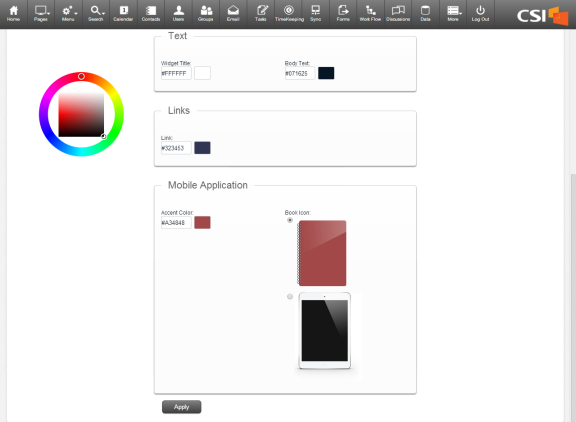
In an effort to make this site customizable, your Site Administrator can select a color scheme that matches that of the company.
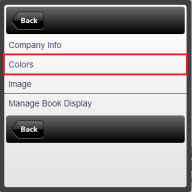
Site Administrators can choose a color from the palette or enter specific color numbers in the appropriate text boxes. Once colors have been selected, click Apply.
Image
Along with color options, branding the site with your company logo helps establish this as your organization's site.
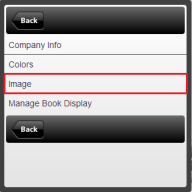
To enter a URL that can be accessed by clicking on the graphic, enter a website address in the “Href” text box. This feature is optional.
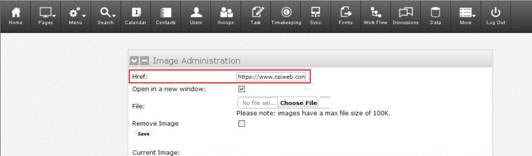
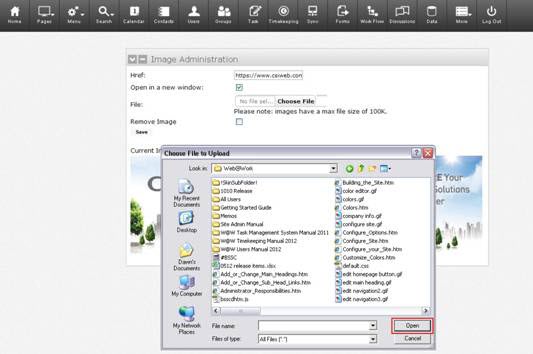
To select a graphic, click the Browse button to search your PC or network for the appropriate file. JPG format works the best, and images have a maximum file size of 100 K. Choose the graphic by clicking the Open button within the pop-up window. Insert the graphic onto the main page by clicking Save.
Manage Book Display
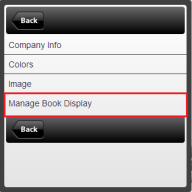
The Site Administrator controls which books are displayed in the app using Manage Book Display.
A list of books that have been uploaded for your institution will be displayed.
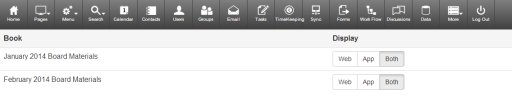
Select the option that corresponds to the display appropriate for each book.
|
Web |
Book will be accessible from the full website only. |
|
App |
Book will be accessible from the app only. |
|
Both |
Book will be accessible from both the full website and the app. |